
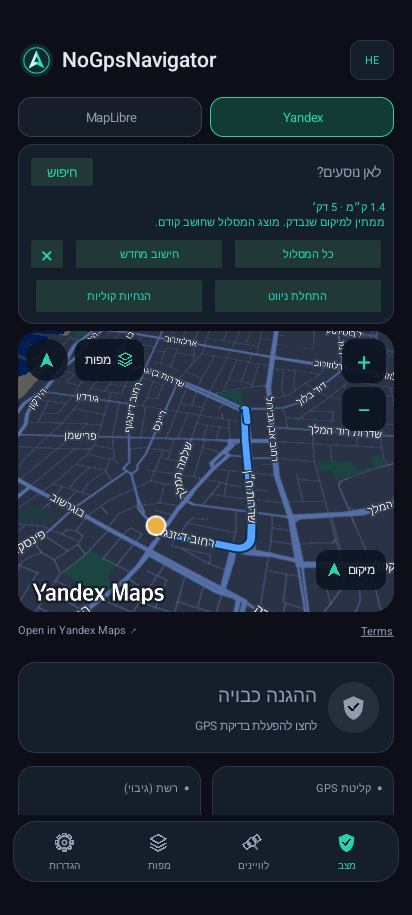
GPS looks OK
No clear mismatch was found. Correction is not needed right now. This checks the available data; it is not an absolute guarantee.
You are in Israel, but the map shows Beirut airport in Lebanon? When GPS is unavailable or appears spoofed, NoGpsNavigator can keep navigating using a recent fallback location from the cellular network or Wi-Fi. It can also share that position with other navigation apps.
APK installation file · direct download from this website
Set things up while your vehicle is parked. You do not need technical experience to get started.
Tap the download button on your Android phone. Once it finishes, open the file from the notification or your Downloads folder. Its name ends in .apk.
If Android asks for permission for your browser, open the settings it offers and enable “Allow from this source”. Go back and tap “Install”. If the app is already installed, choose “Update” — there is no need to uninstall it.
Open NoGpsNavigator and allow precise location access. Keep the phone’s Location setting on. Allow notifications when prompted so you can see when protection is running in the background.
Protection starts automatically when location is enabled and permission is granted. Wait for your map dot and the check result. The button at the top changes the app language.
Already on version 1.0.0? This is a revised build with the same version number. Install it over your existing app; the update check will not offer it as a newer version.
For example, you are in Israel but the map shows Beirut airport. This illustrates an incorrect position, not a real move. Stop somewhere safe, open NoGpsNavigator and compare “GPS signal” with “Network · backup”. Network location is an estimate: check its accuracy and your surroundings too.
No clear mismatch was found. Correction is not needed right now. This checks the available data; it is not an absolute guarantee.
Read the explanation below the heading. Data may be inaccurate, or a recent fallback location may be unavailable. Do not follow an implausible map dot.
Correction is currently sending a fallback position to Android. How Waze or Google Maps use it also depends on those apps.
This is a separate feature, initially switched off. You can skip this setup if you only navigate inside NoGpsNavigator.
On Samsung: Settings › About phone › Software information › Build number. Tap Build number 7 times and enter your phone’s unlock code if asked. On Pixel: Settings › About phone › Build number. Menu names vary by phone.
Return to Settings and find “Developer options”. Open “Select mock location app” and choose NoGpsNavigator. You do not need to enable USB debugging.
Return to NoGpsNavigator › Settings › “Correction for other apps”. Enable “Share fallback location with other apps”. “Set up location correction” provides additional help.
An enabled switch does not mean a position is being sent. Sharing starts when GPS has a problem and a recent fallback location is available. Waiting is normal when GPS is healthy. If no fallback position is available, wait and check your network connection. If the fallback position expires during correction, output pauses: old coordinates are not presented as new, and suspect GPS stays blocked until correction is disabled.
Keep protection running in the background and open Waze or Google Maps. Before driving, check that the dot matches your location. Android labels these coordinates as test locations, so some apps may reject them.
MapLibre can save maps of places you have visited. Download them ahead of time while online. A saved map does not save Yandex routes: Yandex, address search and new route calculations require a connection. Network-based fallback location is not guaranteed without network services either.
Check that phone location is on and NoGpsNavigator has precise location permission. Open the app and wait. Without usable GPS or a recent network position, a reliable location may be unavailable.
Healthy GPS does not need replacing. If GPS is unreliable but there is no recent network position, the app waits for data. Read the full message rather than relying on its colour.
Check that NoGpsNavigator is selected as the mock location app, its sharing switch is on, and its status says it is publishing a position. Reopen your navigator. If it rejects the position, acceptance cannot be guaranteed; check the map inside NoGpsNavigator.
Protection can keep running with a background notification. Your phone may restrict background activity. Reopen NoGpsNavigator after restarting the phone. Returning from the background does not trigger another update check.
Check for updates in app settings or return to this page. Android still asks you to confirm installation. You do not need to uninstall the previous version.
Download to your phone, open the app and follow the steps at your own pace.